· Infra · 10 min read
GitLab with Object Storage on DigitalOcean or Cloudflare
GitLab's object storage docs are good, but almost every concrete example is AWS S3 or Google Cloud Storage. For a company with a billing team and an AWS org, that's fine. For a home lab, pointing GitLab at S3 is a small financial risk you don't need to take.
I wired GitLab CE 19.0.1 up to both DigitalOcean Spaces and Cloudflare R2 — backups and consolidated object storage — and ran real backups against each to confirm they land. This is the config that worked, the two R2 quirks that aren't in the docs, and why I'd steer any personal GitLab away from the big three.
There's a companion repo with every gitlab.rb variant (backups, consolidated, and the older storage-specific form) for both providers: gitlab-object-storage-cf-do.
Why not AWS / Azure / GCS for a personal GitLab
It's not that they don't work — they work great. It's that the failure modes are financial, and they're silent until the invoice.
- Egress fees. S3 charges ~$0.09/GB to get your data out. A GitLab restore, a misconfigured sync that loops, an LFS-heavy clone over object storage — any of these can quietly move hundreds of GB. You don't find out until the bill.
- Per-request pricing + the long tail. S3 bills GET/PUT/LIST per thousand. GitLab's object storage is chatty. It's pennies until it's a dashboard you have to learn.
- Blast radius. A leaked S3 key on a personal account can be turned into a crypto-mining or data-exfil bill in hours. There's no spending cap by default — billing alerts are after the fact. People have woken up to five-figure surprises.
- IAM complexity. Getting a least-privilege S3 policy right is real work. Most home labbers end up with an over-broad key because the scoped one "didn't work," which makes the leak scenario worse.
For a lab, you want predictable, capped, boring storage. That's exactly what these two give you:
| Storage | Egress | Notable | |
|---|---|---|---|
| AWS S3 | ~$0.023/GB | ~$0.09/GB | per-request billing, no hard cap |
| DO Spaces | $5/mo flat (250 GB + 1 TB transfer), then ~$0.02/GB | included in base, then ~$0.01/GB | one flat line item |
| Cloudflare R2 | ~$0.015/GB (10 GB free) | $0 — zero egress, ever | egress-free makes restores free |
R2's zero-egress is the headline for backups specifically: restoring a backup costs nothing in transfer. On S3, a disaster-recovery test is a billable event. (Prices approximate, mid-2026 — check current rates, but the shape is the point.)
The one concept that unlocks everything: it's all just S3
DO Spaces and Cloudflare R2 are both S3-compatible. GitLab talks to object storage through Fog using the AWS provider regardless of who's actually hosting the bucket — you just override the endpoint and region. Once that clicks, the config is nearly identical across all three providers; only a couple of fields change.
The three things that ever differ:
endpoint— the provider's S3 URL.region— a real region for DO; the literal string'auto'for R2.- A couple of R2-only compatibility flags (below).
Backups → DigitalOcean Spaces
DO Spaces is plain-vanilla S3. Create a Space, generate a Spaces access key (this is separate from your DO API token — it's under API → Spaces Keys), and:
# /etc/gitlab/gitlab.rb
gitlab_rails['backup_upload_connection'] = {
  'provider'              => 'AWS',
  'region'                => 'nyc3',                              # your Space's region
  'aws_access_key_id'     => '<SPACES_KEY>',
  'aws_secret_access_key' => '<SPACES_SECRET>',
  'endpoint'              => 'https://nyc3.digitaloceanspaces.com',
  'aws_signature_version' => 4,
  'path_style'            => false                               # virtual-hosted style is fine on DO
}
gitlab_rails['backup_upload_remote_directory'] = 'gitlab-backups'
Then:
gitlab-ctl reconfigure
gitlab-backup create CRON=0
The tarball gets built in /var/opt/gitlab/backups and uploaded to the Space. Confirm it landed:
aws --endpoint-url https://nyc3.digitaloceanspaces.com s3 ls s3://gitlab-backups/
Nothing exotic. This is the config the docs would give you for S3, with endpoint and region swapped. It worked first try.
Backups → Cloudflare R2 (with the two quirks)
R2 is also S3-compatible, but two things bite you if you copy an S3 example verbatim. Both are in the config below:
# /etc/gitlab/gitlab.rb
gitlab_rails['backup_upload_connection'] = {
  'provider'                      => 'AWS',
  'region'                        => 'auto',                     # QUIRK 1: must be the literal 'auto'
  'aws_access_key_id'             => '<R2_ACCESS_KEY_ID>',
  'aws_secret_access_key'         => '<R2_SECRET_ACCESS_KEY>',
  'endpoint'                      => 'https://<ACCOUNT_ID>.r2.cloudflarestorage.com',
  'aws_signature_version'         => 4,
  'enable_signature_v4_streaming' => false,                      # QUIRK 2: R2 rejects AWS streaming uploads
  'path_style'                    => true
}
gitlab_rails['backup_upload_remote_directory'] = 'gitlab-backups'
Quirk 1 — region => 'auto'. R2 has no regions in the AWS sense, but Fog's SigV4 signer requires a region string to compute the signature. Cloudflare's documented value is the literal 'auto'. Leave it off and the signature is wrong; put a real AWS region and it's also wrong.
Quirk 2 — enable_signature_v4_streaming => false. Fog defaults to AWS's streaming, chunked upload format (STREAMING-AWS4-HMAC-SHA256-PAYLOAD). R2 rejects it. If you skip this flag, gitlab-backup create builds the tarball fine and then fails at the upload with an opaque signature/streaming error. This is the single setting that most "R2 doesn't work with GitLab" threads are missing.
With both set, the backup uploads cleanly — same gitlab-backup create, verified in the R2 bucket.
The R2 credentials trick
R2's S3 keys (access_key_id / secret_access_key) are normally minted in the dashboard under R2 → Manage R2 API Tokens. But there's a documented shortcut if you already have a Cloudflare API token with R2 object read+write: the S3 credentials are derived from it.
- Access Key ID = the API token's ID (not its value). Get it from
GET /accounts/{account_id}/tokens/verify→result.id. - Secret Access Key = the SHA-256 hex of the token's value:
printf '%s' "$CLOUDFLARE_API_TOKEN" | sha256sum | awk '{print $1}'
That's the entire derivation. Handy when you're automating and already have a token in your secret store rather than dashboard-minted S3 keys.
Live object storage, not just backups
Backups are one bucket. GitLab can also push artifacts, LFS, uploads, packages, Terraform state, the dependency proxy and more to object storage — which is what actually keeps the droplet's disk from filling up. There are two ways to configure it, and the distinction trips people up:
Consolidated form (recommended). One connection block, then a bucket per data type. This is the modern form and what you want for new setups:
gitlab_rails['object_store']['enabled'] = true
gitlab_rails['object_store']['proxy_download'] = true
gitlab_rails['object_store']['connection'] = {
  'provider'                      => 'AWS',
  'region'                        => 'auto',
  'aws_access_key_id'             => '<R2_ACCESS_KEY_ID>',
  'aws_secret_access_key'         => '<R2_SECRET_ACCESS_KEY>',
  'endpoint'                      => 'https://<ACCOUNT_ID>.r2.cloudflarestorage.com',
  'aws_signature_version'         => 4,
  'enable_signature_v4_streaming' => false
}
gitlab_rails['object_store']['objects']['artifacts']['bucket']       = 'gitlab-artifacts'
gitlab_rails['object_store']['objects']['lfs']['bucket']             = 'gitlab-lfs'
gitlab_rails['object_store']['objects']['uploads']['bucket']         = 'gitlab-uploads'
gitlab_rails['object_store']['objects']['packages']['bucket']        = 'gitlab-packages'
gitlab_rails['object_store']['objects']['terraform_state']['bucket'] = 'gitlab-tfstate'
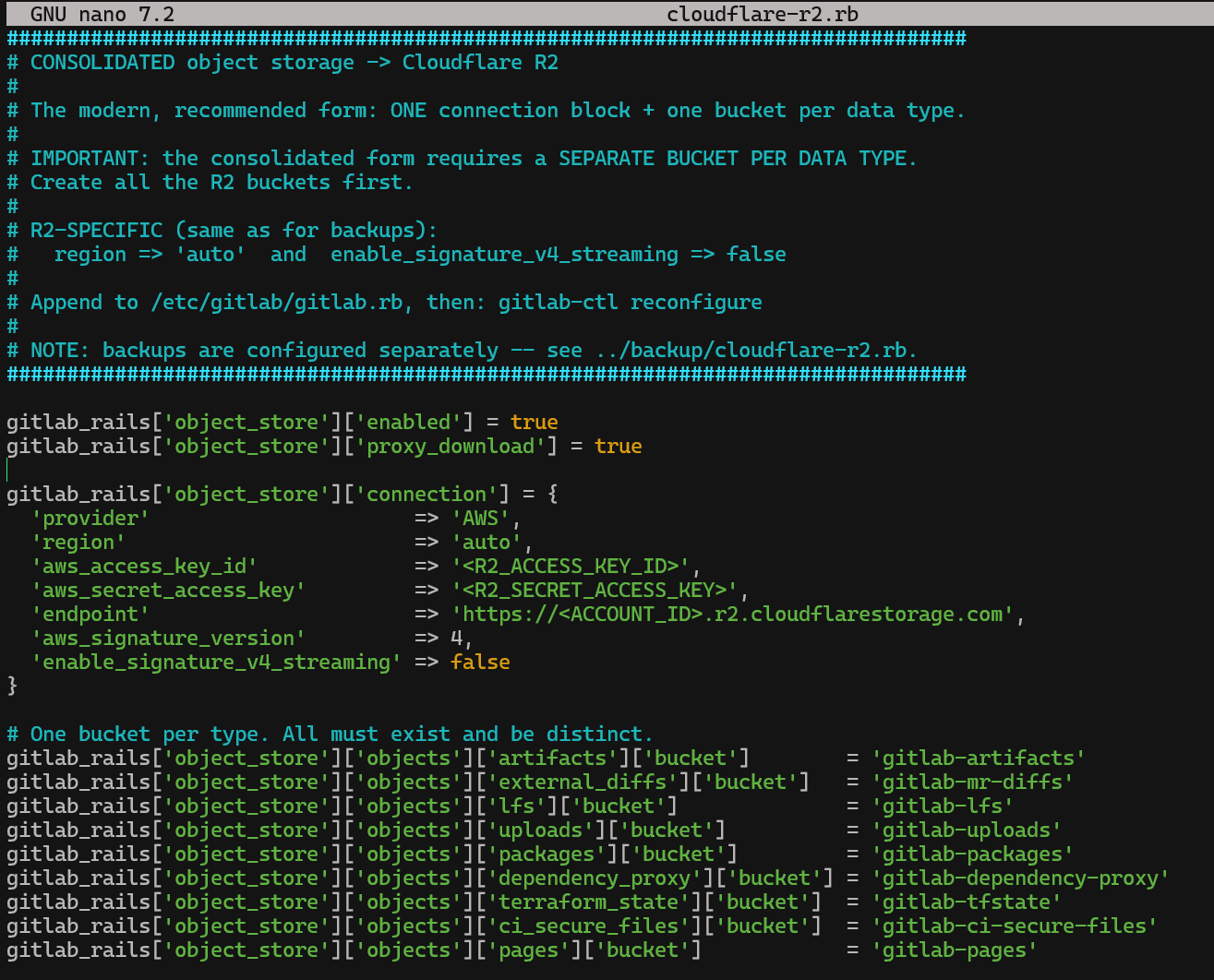
The DigitalOcean Spaces equivalent is the same shape — only the endpoint/region change, and you drop the two R2 flags:
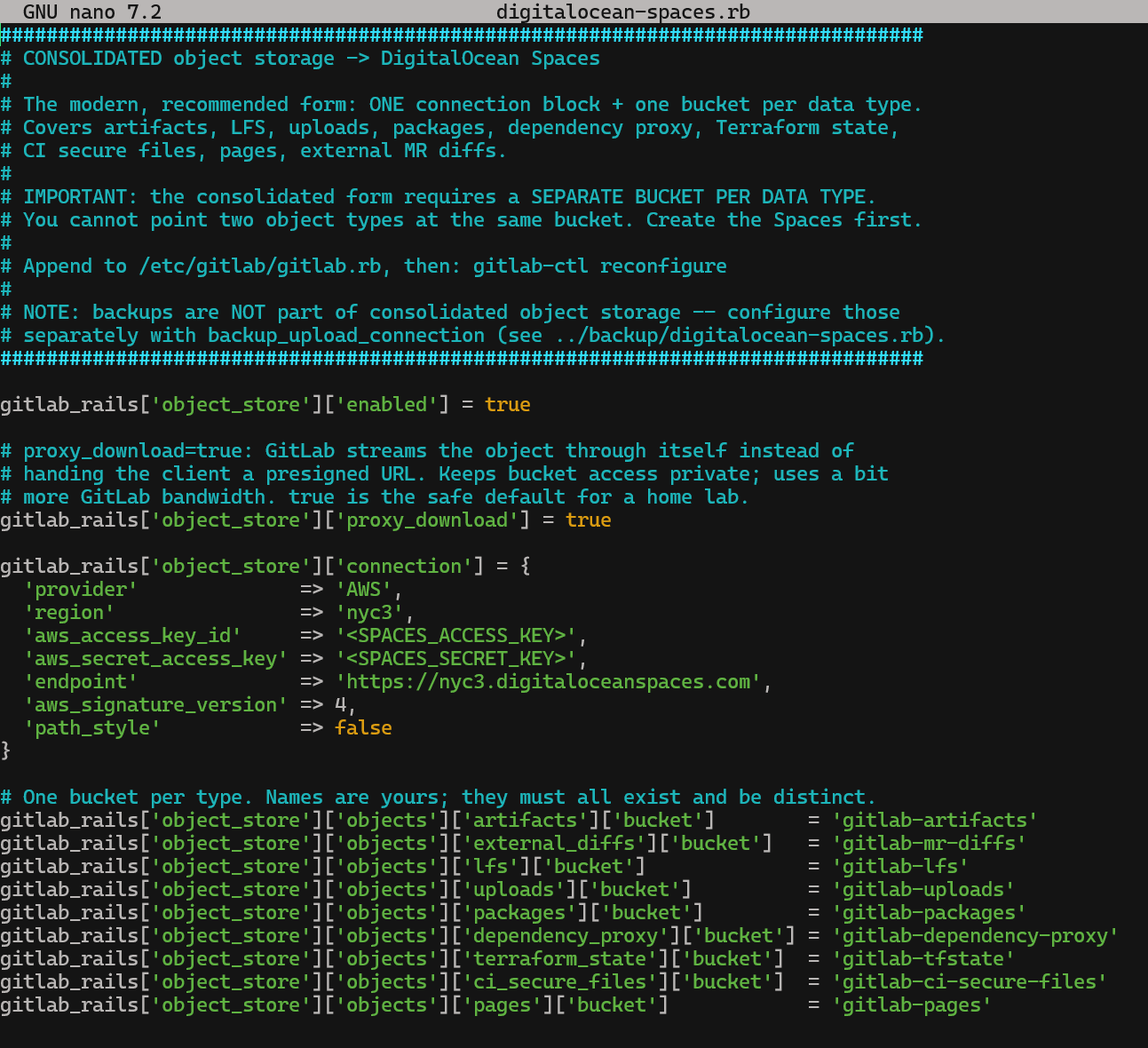
One gotcha that isn't optional: the consolidated form requires a separate bucket per data type. You cannot point artifacts and LFS at the same bucket — GitLab refuses to start. Make the buckets first.
Storage-specific form (older). Every type carries its own full connection block. More verbose, but it's still supported and you'll see it in older guides — and it's the only way if you want, say, LFS on R2 but artifacts on Spaces:
gitlab_rails['artifacts_object_store_enabled'] = true
gitlab_rails['artifacts_object_store_remote_directory'] = 'gitlab-artifacts'
gitlab_rails['artifacts_object_store_connection'] = {
  'provider' => 'AWS', 'region' => 'auto',
  'aws_access_key_id' => '<KEY>', 'aws_secret_access_key' => '<SECRET>',
  'endpoint' => 'https://<ACCOUNT_ID>.r2.cloudflarestorage.com',
  'enable_signature_v4_streaming' => false
}
# ...repeat the whole block for lfs_object_store_*, uploads_object_store_*, etc.
The companion repo has both forms, fully written out, for both DO and R2 — drop-in gitlab.rb files plus a README walking through each: gitlab.com/altanch/gitlab-object-storage-cf-do.
A note on email, since it bit me here too
If you provision the GitLab box on a fresh DO droplet: DigitalOcean blocks outbound port 25 by default. Postfix installs and GitLab hands mail to it fine, but nothing leaves the box. The fix is an authenticated SMTP relay on port 587 (gitlab_rails['smtp_*']), not local sendmail. Unrelated to object storage, but the same "works in the docs, not on a personal droplet" theme.
TL;DR
- GitLab object storage is just S3 — use the Fog
AWSprovider and overrideendpoint+regionfor any S3-compatible host. - For a home lab, skip AWS/Azure/GCS. The risk is financial: egress fees and no hard spending cap. DO Spaces (flat rate) and Cloudflare R2 (zero egress) are predictable and safe.
- DO Spaces is vanilla S3 — copy an S3 example, swap
endpoint/region, done. - Cloudflare R2 needs exactly two extra settings:
region => 'auto'andenable_signature_v4_streaming => false. That second one is why most "R2 + GitLab" attempts fail at upload. - R2 S3 keys can be derived from a Cloudflare API token: access key = token ID, secret =
sha256(token value). - Consolidated object-storage form needs a separate bucket per data type — make them first.
Verified on GitLab CE 19.0.1. All the gitlab.rb files are in the companion repo.